Finding and Fixing Accessibility Issues in Your Moodle Course
This article explains what the Brickfield Accessibility+ Toolkit does, how to access it's reports and "wizards," and where to find guides, workshops, and one-on-one support.
In this article:
- What is the Brickfield Accessibility+ Toolkit?
- How to get started using the Toolkit
- Opportunities for real-time learning
- Workshop recording
- Need more help?
What is the Brickfield Accessibility+ Toolkit?
The Brickfield Accessibility+ Toolkit for Moodle analyzes course content native to Moodle (i.e. not linked content, files or external tools, etc.). It provides instructors with a report of potential accessibility issues in Moodle-based content and “wizards” that can be used to fix some of the most common issues. Brickfield also provides aggregate Moodle accessibility reports that are available to individuals responsible for tracking progress toward a more digitally-accessible learning environment at NC State. While the Toolkit doesn’t guarantee complete accessibility, it offers a practical starting point for improving course materials and provides multiple avenues for instructors to learn, troubleshoot, and make progress toward creating a more inclusive learning environment.
The Brickfield Accessibility+ Toolkit is just one helpful tool in improving the accessibility of your course materials. It should be used in combination with other tools and resources (see our Digital Accessibility Guide). A Brickfield report with no errors does not guarantee that your course is fully accessible…even for the parts of Moodle that it checks. Still, it is a powerful and useful tool to assist you on your journey of accessibility improvement.
Learn more:
- What is the Brickfield Accessibility+ Toolkit? (YouTube video by DELTA, 4 min 55 sec)
- Overview of Brickfield Accessibility+ Toolkit (DELTA Knowledge Base Article)
How to use the Toolkit
First, learn the basics
A basic understanding of digital accessibility principles will make the reports and wizards much more meaningful and easier to use. OIT’s online asynchronous course, Digital Accessibility Basics takes less than an hour to complete and will provide you with a good foundation.
Next, find the toolkit in your course
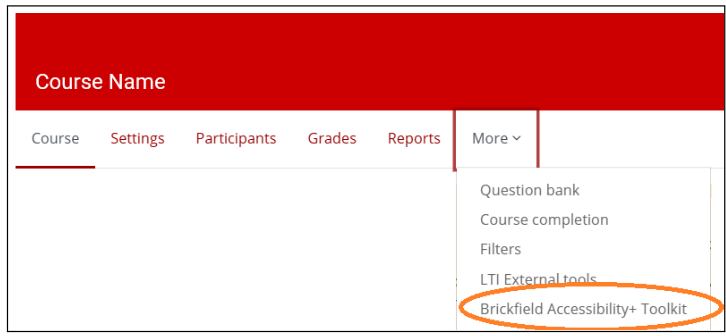
To access the Toolkit’s reports, tools, wizards and an analysis of your course content within a Moodle course (see the screenshot below):
- Open the “More” menu at the top of your course’s main page.
- Select “Brickfield Accessibility+ Toolkit”
Then, open and follow our step-by-step guide
The Brickfield Step-by-Step User Guide and Brickfield YouTube playlist offer the recommended approach for finding and fixing errors in your Moodle course. Note that you may see a large number for some reported errors; rest assured that many issues can be fixed in bulk using the “wizards” and any progress makes your course more accessible.
Other resources:
- Finding Errors Using Brickfield Accessibility+ Toolkit’s Reports (DELTA Knowledge Base Article)
- Fixing Errors Using Brickfield Accessibility+ Toolkit’s Wizards (DELTA Knowledge Base Article)
- Brickfield Check Reference Document – Spreadsheet listing all the Brickfield checks and detailed information about each
Workshop information
- View and register for a Make Your Moodle More Accessible workshop.
- Watch a recent workshop recording
Need help?
- For in-depth help with complex issues, submit an Instructional Consultation Request.
- For on-demand assistance and quick answers to questions, submit a LearnTech Help Request, email learntech@ncsu.edu, or call (919) 513-4616 to get direct help from DELTA.