WeVideo PlayPosit: Interactive Video
WeVideo is a multimedia tool that allows you to create “bulbs” (video lessons) by combining interactivity and video content from YouTube, Panopto, or Vimeo. Using bulbs, instructors can transform any video into a learning experience by embedding questions, images, discussion, audio and other media elements. This article provides step-by-step instructions on how to create interactive video lessons through WeVideo.
Beginning in Summer 1 2026, PlayPosit will transition to a new platform, WeVideo Interactivity. Throughout this article, references to WeVideo refer to the same tool previously known as PlayPosit.
In this article
- What is WeVideo?
- Is Interactivity Right For Me?
- WeVideo Interactivity Features
- Best Practices
- Use Cases and Examples
- Workshop Information
- Resources
What is WeVideo?
Check out the detailed instructions in our Instructor Guide to Using WeVideo to get started using this tool. You can also Try out a bulb to experience WeVideo as a student.
WeVideo and WeVideo Interactivity, previously known as PlayPosit, are now part of the same platform following the merger of the two tools. Because of this integration, instructors who formerly used PlayPosit as a standalone tool may also notice references to additional features throughout the platform interface.
Multimedia Creation
One feature instructors may encounter is Multimedia Creation, which allows users to create and edit videos, podcasts, screen recordings, and other media directly within the platform.
At this time, DELTA is still evaluating this tool and it is not currently supported for faculty and staff use. However, because multimedia creation is a core component of the broader WeVideo platform, faculty will see references to it when navigating the platform.
Interactivity
WeVideo Interactivity is a video-based learning tool that we previously referred to as PlayPosit. This tool allows instructors to add interactive elements directly into video content. Using WeVideo Interactivity, instructors can embed questions, discussions, polls, and other engagement activities within videos to encourage active participation and check student understanding throughout the learning experience.
This article will focus only on the WeVideo Interactivity tools and features currently supported by DELTA for instructional use at NC State.
Is Interactivity Right For Me?
WeVideo Interactivity is designed to support active learning by allowing instructors to embed engagement opportunities directly into video-based course materials. Rather than asking students to passively watch a video, instructors can incorporate questions, reflections, discussions, polls, and other interactive elements throughout the viewing experience.
WeVideo Interactivity can support a wide range of instructional approaches across disciplines. While many instructors use the tool to create interactive lectures or video-based knowledge checks, it can also be used for more learner-centered and skills-based activities. Like any digital tool, WeVideo Interactivity is most effective when it is used to support a specific teaching or learning goal. Instructors may find this tool helpful when they want to increase student participation in asynchronous learning environments, encourage reflection during lectures or demonstrations, check for understanding throughout a video, or break longer content into more manageable learning segments.
WeVideo Interactivity may also be useful for instructors who want to:
- encourage active engagement during online or hybrid instruction
- provide low-stakes knowledge checks
- guide students through complex concepts step-by-step
- collect student feedback or responses during instruction
- support self-paced learning experiences
- create more structured viewing experiences for students
WeVideo Interactivity Features
Creating Interactive Videos
Interactive videos previously known as ‘bulbs’ are a way to transform traditional video content into active learning experiences by embedding engagement opportunities directly into videos. Rather than simply watching content from beginning to end, students interact with the material throughout the learning process. Interactive videos can be used with instructor-created recordings, lecture captures, demonstrations, narrated presentations, tutorials, or other video content.
Interactions and Pauses
One of the platform’s biggest strengths is the variety of interactions instructors can place throughout a video. Knowledge checks, reflective prompts, discussions, polls, free-response questions, and embedded resources can all appear directly within the video timeline. Not every pause has to require a response. Some instructors use simple pauses to slow down instruction, emphasize important concepts, encourage note-taking, or break longer videos into more manageable sections. These intentional stopping points can help create a more structured and learner-centered viewing experience. Here are the following interactions available when adding interactivity to your videos:
Question Types
- Multiple Choice
- Check All That Apply
- Free Response
- FIll In The Blank
- Poll
- Discussion
Pauses
- Pause
- Web Embed
- PDF File
Settings and Customization
WeVideo Interactivity also includes a range of settings and customization options that allow instructors to shape the learner experience. Some settings support more open and flexible viewing experiences, while others can create a more guided structure with required progression or limited skipping. Even small adjustments can significantly change how students interact with the material. Be sure to think about the purpose of the bulb before adjusting settings to ensure you receive the data and analytics you desire for grading or progress monitoring. Here’s a quick overview of the settings and customizations offered:
Allow learners to rewind after an interaction appears
Learners can rewind as far as the beginning of the video while they are answering an interaction.
Allow learners to skip interactions
Learners can choose not to answer interactions and keep watching the video.
Allow learners to fast forward
Viewers can fast-forward up to the next required interaction.
Allow learners to retake the interactive video upon completion
Learners can retry an entire bulb when they are done watching the video, but doing so will set their score back to zero until they finish watching the entire bulb again. Any notes the learner has taken will be deleted when a learner begins a new attempt. Once this option is selected, the instructor can also set how many times learners can retake this bulb with the input section below. Learners will have unlimited retakes if the number is set to 0.
Allow learners to view their printable report
Learners can download a printable worksheet of their answers once the bulb has been completed. Instructors may enable this option as a way for learners to have a certificate of completion. Learners may use this report to review and study at a later date. If the instructor has enabled a minimum completion score for the Bulb, learners must meet the minimum completion score to view the printable report.
Allow learners to increase playback speed
This option will automatically be enabled for all bulbs. Instructors can now have the option of disabling playback speed so their learners are unable to speed up videos.
Disable captions for this video
Learners will not be able to view the captions and transcript when taking the bulb. If the instructor wants learners to view the transcript without displaying the captions, please also select the “Make transcript available” option.
Hide learner score upon interactive video completion
Instructors have the option to hide the learner score when the bulb is completed. This will prevent learners from seeing a specific percentage score when they complete a Bulb.
Do not mark interactive video complete unless learner scores at least __
Learners will have to earn a minimum score in order for a bulb to be marked as complete. In order for the minimum score requirement to be selected, there must be at least one interaction worth at least one point, and the instructor will need to select the option: Allow learners to retake the bulb upon completion. Also, if the instructor has selected Allow learners to view their printable report, learners will need to meet the minimum score to view their printable report.
AI Creation in Interactivity
AI features in WeVideo are designed to support, not replace, the instructional design process. Instructors can use AI to help generate interactions from video content or refine existing interactions to better align with their learning objectives. The sections below provide an overview of both options for AI Creation when building interactive videos
Add AI-Generated Interactions to an Interactive Video
Instructors can use AI to generate interactions directly from a video’s transcript. When generating interactions, instructors can specify where interactions should appear within the video, how many interactions should be created, the desired cognitive complexity using Bloom’s Taxonomy, and the types of interactions they would like to include. There is also an option to provide additional context or instructions to help guide the generated content.
Because AI-generated interactions rely on a video’s transcript, it is important to ensure that transcripts are available and accurate before using this feature. Depending on the video source, instructors may need to generate, upload, or verify transcripts to ensure the best results.
Enhance Existing Interactions with AI
AI can also be used to refine interactions that have already been created. Rather than starting from scratch, instructors can use AI tools to improve, revise, or adapt existing content.
For example, AI can help:
- Modify an interaction using a custom prompt
- Adjust the complexity or cognitive level of a question
- Replace an interaction with a similar alternative
- Rewrite content for clarity
- Translate interactions into another language
Advanced Features
Branched Learning and Jumps
Beyond standard video interactions, instructors can also create branched learning experiences using jumps and navigation pathways. This allows students to move to different sections of a video, or even entirely different videos, based on responses, performance, choices, or review needs.
For example, students who already demonstrate understanding might move ahead to advanced material, while others revisit foundational explanations or additional practice before continuing. These branching options can support differentiated instruction, remediation, self-paced review, scenario-based learning, or adaptive learning experiences.
WeVideo Interactivity Playlists
Playlists allow instructors to organize multiple interactive videos and activities into a larger guided learning experience. Rather than assigning a single interactive video independently, playlists can connect several videos, assignments, or learning checkpoints together in a structured playlist.
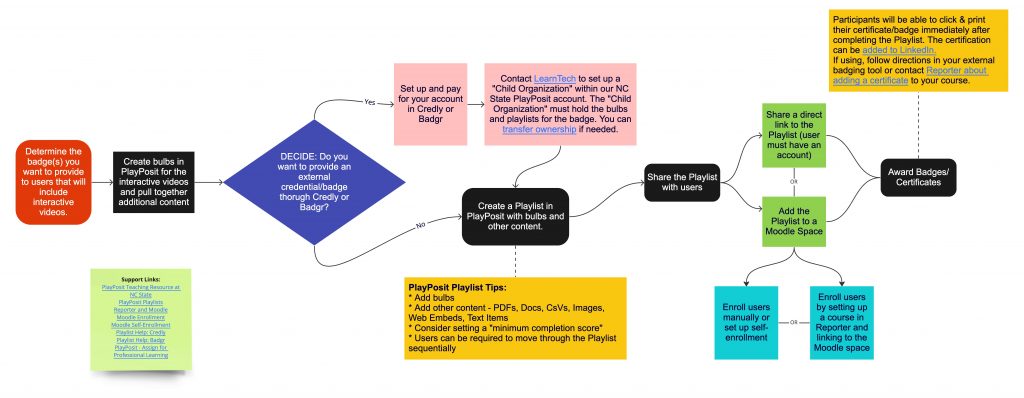
WeVideo playlists can also be created to create more professional learning modules for students. Instructors can add certificates that are sent to students. This flowchart shows the process for creating a playlist with badging/certificates. See the image below or click the link in the caption to go to the interactive version of the flowchart. You can expand it and click on support links.
Learner-Made Interactive Videos
In addition to instructor-created content, WeVideo Interactivity also supports learner-made interactive videos. These activities shift students from content consumers to content creators by allowing them to build their own interactive learning experiences. Learner-made interactive videos can support project-based learning, peer teaching, demonstrations, presentations, reflective activities, skill demonstrations, and collaborative assignments. Unlike standard instructor-led interactive videos, this feature emphasizes student authorship, content creation, and active knowledge construction as part of the learning process.
- WeVideo Support: How do I let learners create their own interactive videos?
- Turn Learners into Instructors with Learner-Made Bulbs
Best Practices
Teaching in person allows for a variety of active learning opportunities for students to engage and interact with the content, the instructor, and one another. Directly translating these activities to an asynchronous online learning environment can sometimes be challenging. Here are some best practices to help ensure students are getting the most out of your interactive content.
Let the content drive the use of the tool, not the other way around.
Does every video need to have interactions? The answer largely depends on your content and how you expect students to engage with it. Identifying potential pain points where students tend to struggle is a good first step in deciding when and where to add supplemental materials or additional support.
You may also decide that your primary goal is simply to know whether students watched the video. In that case, you might add a Pause or Poll interaction at the end and review the data in Moodle or through WeVideo’s monitoring and analytics features.
Be intentional about what interactions you add and when they occur.
Consider the points during a lecture where you would typically ask students questions or prompt them to engage with the material. Start by defining clear objectives for the content you are creating, then build your interactions around those objectives.
Are you delivering content, assessing learning, conducting a knowledge check, or creating a review module for students? Don’t add interactions just for the sake of adding them. Think about what’s needed based on the content and learning objectives you are presenting to students.
If possible, plan ahead.
Knowing that questions and other interactions can appear throughout a video gives you the opportunity to create content that feels more like a conversation with students rather than simply talking at them.
Be intentional when recording lectures, labs, demonstrations, or other content. Have a script, outline, or plan for where interactions will be added. Not only will this make the creation process easier, but it will also be clear to students that the experience was designed intentionally with their learning in mind.
Break it up and “chunk it.”
Divide long lectures into shorter, topic-based segments that are ideally less than 10 minutes long. Microlearning has been shown to be effective, particularly when it comes to student engagement with video content.
Keep the content targeted and meaningful, and remove anything extraneous that could instead be provided as supplemental material. Always keep your learning objectives in mind, and don’t hesitate to divide content into smaller clips when doing so better supports those objectives.
WeVideo also includes a unique feature that requires student interaction prior to moving on with the video lesson and jumping ahead to different segments based on successful completion of assessment questions. Instructors can enable or disable the ability for students to rewind, fast forward or skip non-required interactions, making sure all learning objectives are covered and key ideas are absorbed.
Use Cases and Examples
Interactive Lectures
Interactive lectures are one of the most common uses for the platform. Instructors can pause throughout a lecture to ask questions, check for understanding, prompt reflection, or encourage students to apply concepts before continuing. Many instructors use interactions strategically rather than placing questions every few minutes. Short pauses for reflection, prediction, or note-taking can sometimes be just as effective as graded questions. Breaking longer lectures into smaller segments can also help students stay engaged and process information more intentionally during asynchronous instruction.
Learn More About Interactive Lectures in WeVideo →
Demonstration or Performance Based Assignments
Interactive video can work particularly well in courses that involve demonstrations, performance, observation, or skill development. Instructors may record procedures, techniques, lab demonstrations, worked problems, rehearsals, clinical skills, or creative performances and embed prompts throughout the experience to guide student attention and analysis.
Students can also create their own interactive demonstrations to explain a process, model a skill, reflect on growth, or showcase competency. In some courses, instructors use timestamped comments and feedback to coach students through specific moments in a performance or submission rather than relying only on end-of-assignment feedback.
Learn More About Demonstration/Performance Based Assignments in WeVideo →
Peer Review
Interactive video can help create more structured peer review experiences by allowing students to leave comments and feedback directly within a video timeline. Instead of providing broad feedback at the end of an assignment, students can respond to specific moments in a presentation, demonstration, performance, or project walkthrough.
Instructors can choose whether peer review is open or guided and may include rubrics, prompts, or required feedback criteria to help students provide more meaningful responses. Some instructors also use peer review activities simply as a streamlined way for students to submit video assignments while giving instructors a centralized space for organized feedback and assessment.
Learn More About Peer Review in WeVideo →
Micro-Learning
Playlists can be especially useful for micro-learning experiences by allowing instructors to organize smaller interactive videos into a larger guided sequence. Rather than assigning one long lecture or training video, instructors can break content into shorter, more focused segments centered around individual concepts, skills, or tasks. This approach can work well for onboarding materials, technical training, review modules, software tutorials, lab preparation, or self-paced learning experiences.
Because playlists allow students to progress through content in a structured order, they can help create a clearer learning pathway while still keeping individual activities manageable and focused.
Learn More About Micro-Learning in WeVideo →
Interactive Video Examples
Watch and complete this example interactive video to experience WeVideo as a student and check out this interactive video of different interaction types built into a video about procrastination.
- Higher Education Use Cases: Take a look at how other higher education institutions are using WeVideo to enhance online learning.
- Best Practices for Online Lectures Bulb: Offers some helpful tips for creating engaging recorded lectures.
- Three Ways to Use Interactive Video for Exam Review: WeVideo provides tools for creating interactive video playlists, learner-made content, and advanced analytics to help instructors deliver engaging and effective exam reviews and course materials.
Workshop Information
- Register: Interactive Videos with WeVideo: Getting Started
- Register: Interactive Videos with WeVideo Questioning, Discussion, & Using Feedback
- Register: Create Custom Experiences for Students: WeVideo Branching & Playlists
- Workshop Recording (Including Badging January, 2023)
- Workshop Recording (2022)
If there are no available workshops to register for, please feel free to request an instructional consultation from LearnTech about this topic.